

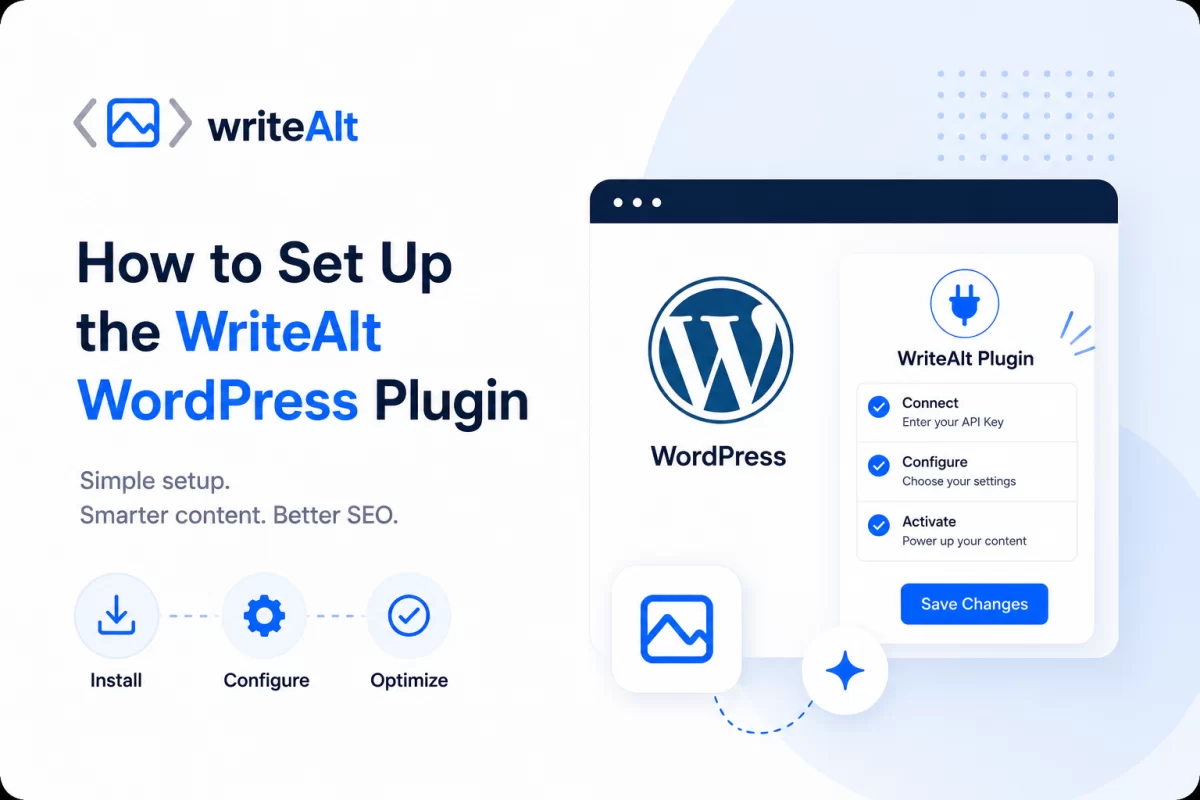
The WriteAlt WordPress plugin brings AI-powered alt text generation directly into your WordPress dashboard.
No more switching between tabs. No more manual copy-paste. Everything happens inside your media library and post editor.
This guide covers:
Plugin setup and API connection
SEO optimization tools (WebP, compression, renaming)
Media Optimizer bulk actions
In-post alt text generation
Step 1: Get Your WriteAlt API Key
First, you need your API key from your WriteAlt account.
Log in to your WriteAlt account
Go to Settings -> API (or visit writealt.com/dashboard#settings/api)
Copy your API key
Keep this key secure. It connects your WordPress site to your WriteAlt credits.
Step 2: Connect the Plugin
After installing and activating the WriteAlt plugin:
Go to your WordPress admin menu -> WriteAlt Settings
Paste your API key into the API Key field
Click Test Connection to verify it works
Your account information will appear:
Email address
Current plan (Bronze, Silver, Gold, etc.)
Available credits
Step 3: Configure SEO Optimization Tools
The plugin includes four powerful image optimization tools. Enable them once. They work automatically.
Tool 1: Convert to WebP
| Setting | What It Does |
|---|---|
| Convert to WebP | Automatically converts uploaded images to WebP format |
Why use it: WebP images are 25-35% smaller than JPEG/PNG while maintaining the same quality. Smaller files = faster site = better Core Web Vitals.
Tool 2: Compress Images
| Setting | What It Does |
|---|---|
| Compress Images | Reduces file size of images larger than your chosen limit |
| Size limit | Set from 0.5 MB to 5 MB |
| Compression Quality | Low, Medium (80%), or High |
Recommendation: Set limit to 0.5 MB and quality to Medium. This catches oversized images without sacrificing noticeable quality.
Tool 3: AI Image Naming
| Setting | What It Does |
|---|---|
| AI Image Naming | Renames images based on generated alt text |
| Naming Format | lowercase-with-dashes (example: red-sunset-over-mountains.jpg) |
Why use it: SEO-friendly filenames help Google understand your images. image_123.jpg tells Google nothing. red-leather-boots.jpg tells Google everything.
Tool 4: Default Settings
| Setting | What It Does | Recommendation |
|---|---|---|
| Default Language | Language for generated alt text | Match your site's language (130+ available) |
| Default Style | Comprehensive, Professional, or Brief | Recommended (balanced for SEO) |
Step 4: Use the Media Optimizer
The Media Optimizer is your control center for bulk actions.
Accessing the Media Optimizer
Go to WriteAlt Settings -> Media Optimizer tab.
Library Statistics
At the top, you will see:
| Stat | What It Means |
|---|---|
| Total Images | All images in your media library |
| No Alt Text | Images missing alt text (your priority) |
| Not WebP | Images that can be converted to WebP |
| Oversized | Images larger than your compression limit |
| Processed by AI | Images that already have WriteAlt alt text |
Click Refresh Stats to update these numbers.
Quick Actions
The Media Optimizer lets you:
| Action | What It Does |
|---|---|
| Select Images | Pick images from your media library |
| Upload Images | Upload new images (even advanced formats WordPress doesn't support natively) |
| Select images with no alt | One-click filter to find missing alt text |
| Generate Alt Text | Generate alt text for selected images using your credits |
Advanced format support: WriteAlt accepts AVIF, HEIC, WebP, SVG, GIF, BMP, and HEIF — even if WordPress doesn't support them natively. Upload first, then export in a WordPress-compatible format.
How Bulk Generation Works
Click Select Images or Upload Images
Filter by "No Alt Text" to find missing descriptions
Select the images you want to process
Click Generate Alt Text
Review the generated descriptions
Save — alt text is automatically added to WordPress
Credits used: 1 credit per image. Your balance shows at the top (example: 10,233 credits).
Step 5: Generate Alt Text Inside Post Editor
When editing any post or page, you will see a WriteAlt card in the sidebar or meta box.
What it does:
Shows the current image in your post
Displays existing alt text (if any)
Provides a Generate Alt Text button
Auto-saves the generated description to WordPress
How to use:
Open any post with images
Find the WriteAlt card in the editor sidebar
Click Generate Alt Text for any image
Review the AI-generated description
It auto-saves — no extra steps
Pro tip: Generate alt text for all images in a post in one click. No need to do them one by one.
Step 6: Monitor Your Credits
Your credit balance appears in the Account Information section:
Email: [email protected] Plan: Bronze Credits: 10,233
Each alt text generation uses 1 credit per image.
Credits apply to both Media Optimizer and in-post generation
Unused credits roll over
Refill with a subscription or pay-as-you-go packs
Settings Summary (Quick Reference)
| Setting | Recommended Value |
|---|---|
| Convert to WebP | On |
| Compress Images | On (0.5 MB limit) |
| Compression Quality | Medium (80%) |
| AI Image Naming | On |
| Naming Format | lowercase-with-dashes |
| Default Language | Your site language |
| Default Style | Recommended |
Ready to Start?
Once configured, the WriteAlt WordPress plugin works automatically:
New images get alt text on upload
Existing images can be bulk-processed in minutes
Advanced formats upload and convert seamlessly
Images compress and convert to WebP automatically
Your products become visible to AI search
First 25 images are free. No credit card required.