


Generate at the cursor
Place your cursor inside an image element and run WriteAlt: Generate Alt Text at Cursor to update the alt attribute.
Website integrations
WordPress WooCommerce Shopify Wix Squarespace DatoCMSCloud integrations
Pinterest Google Drive DropboxDesktop apps
Windows LinuxBrowser extensions
Chrome Extension Firefox Add-on Edge ExtensionDeveloper tools
API Visual Studio CodeGenerate useful, descriptive alt text directly in Visual Studio Code while you build HTML, Markdown, JSX, and TSX interfaces.
A WriteAlt account and API key are required for AI generation.
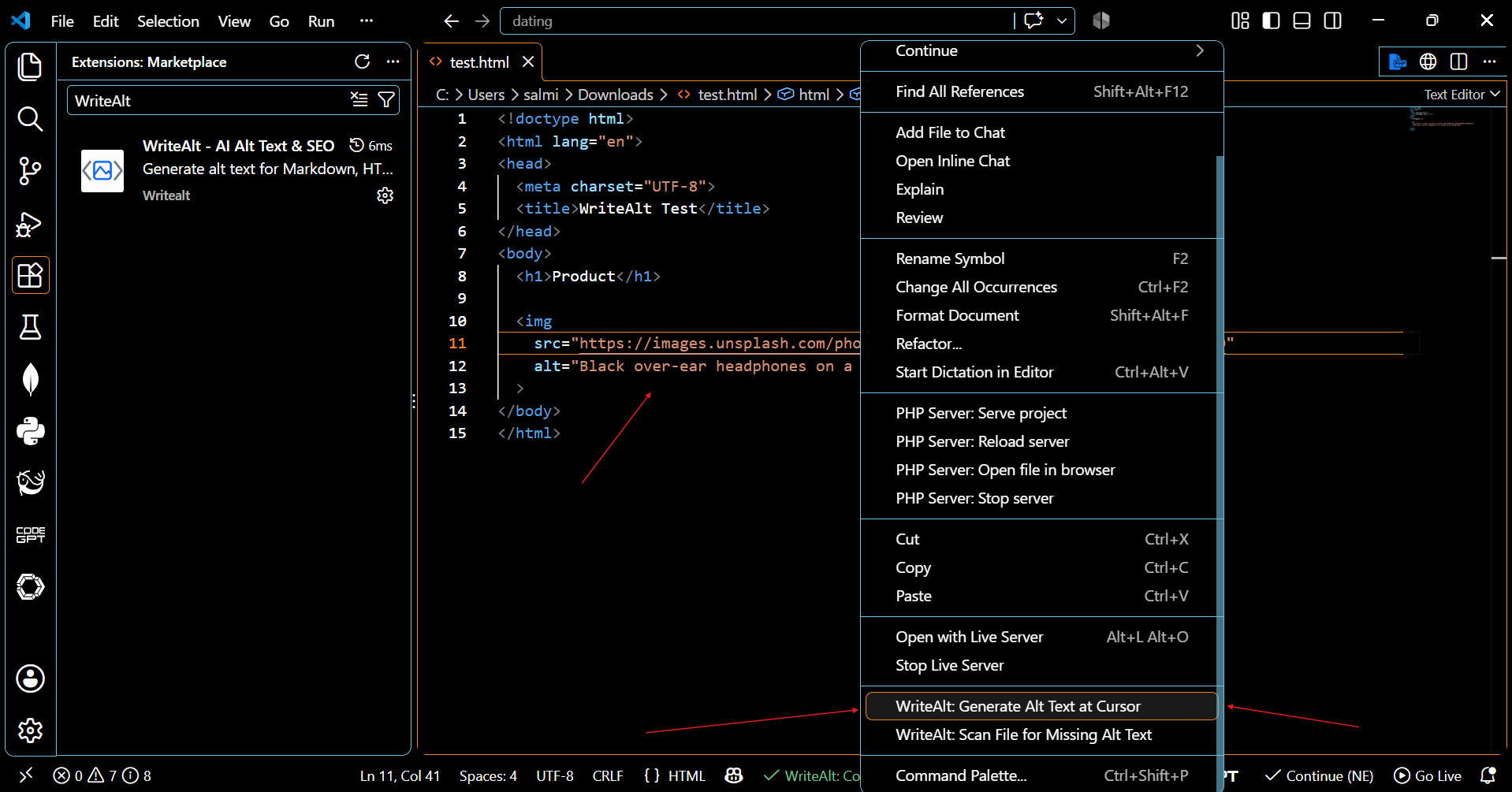
WriteAlt works with image references in your code so you can generate, review, and save better alt text in the same workflow.
Place your cursor inside an image element and run WriteAlt: Generate Alt Text at Cursor to update the alt attribute.
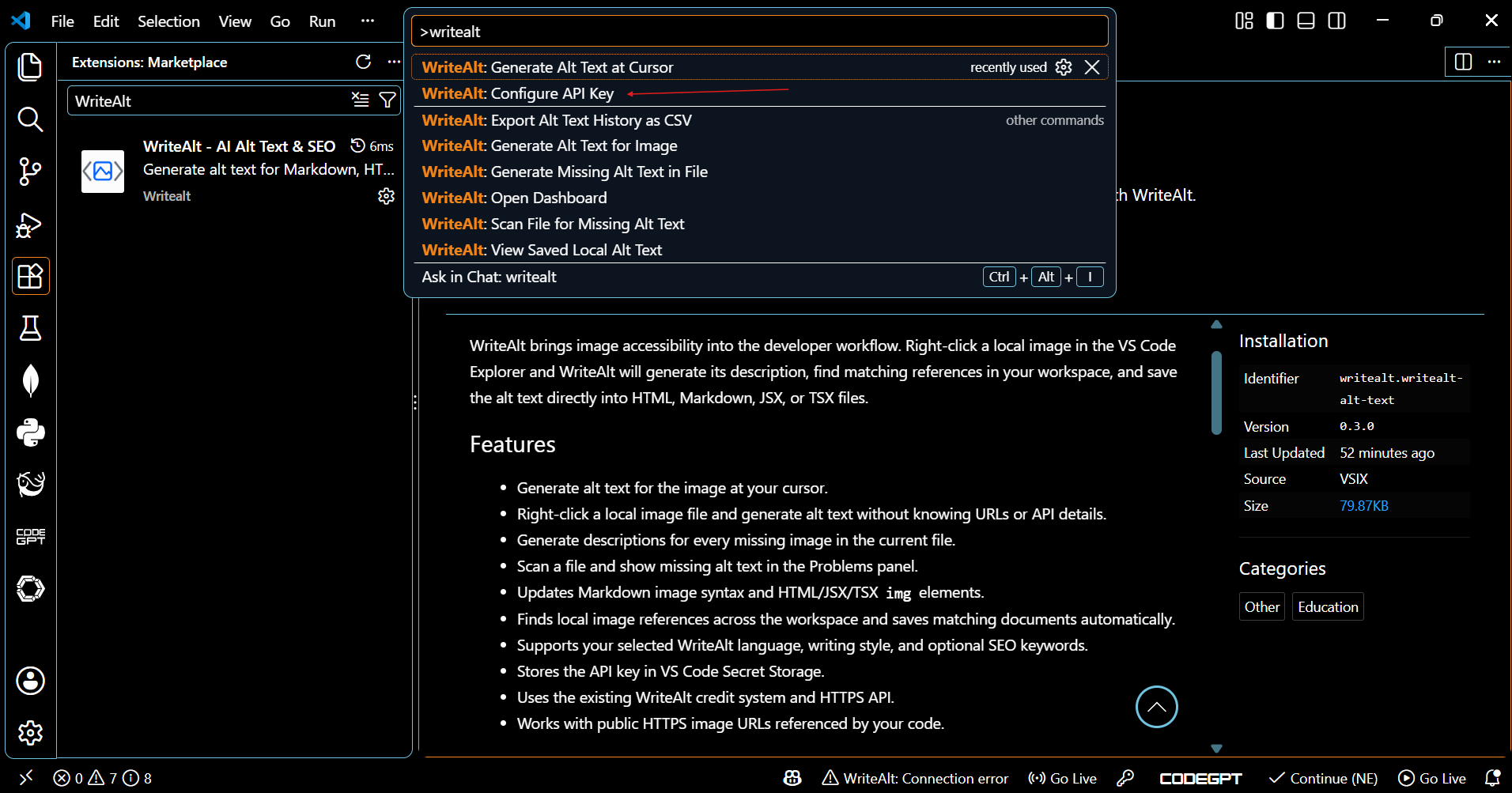
Open the Command Palette with Ctrl+Shift+P, choose WriteAlt: Configure API Key, and connect your own account securely.
Right-click an image in the Explorer and generate a description without searching for the image URL or leaving VS Code.
Update image references in HTML, Markdown, JSX, and TSX while preserving the surrounding document structure.
Select from 138 supported languages, five writing styles, and optional SEO keywords in WriteAlt settings.
Check the generated description in context and keep control over whether an image needs descriptive or empty alt text.
Set up WriteAlt once, then generate descriptions directly from the file or image you are already working on.
Open the WriteAlt page in the Visual Studio Code Marketplace and select Install, or search for WriteAlt in the Extensions panel.
Press Ctrl+Shift+P, run WriteAlt: Configure API Key, and enter your own WriteAlt API key.
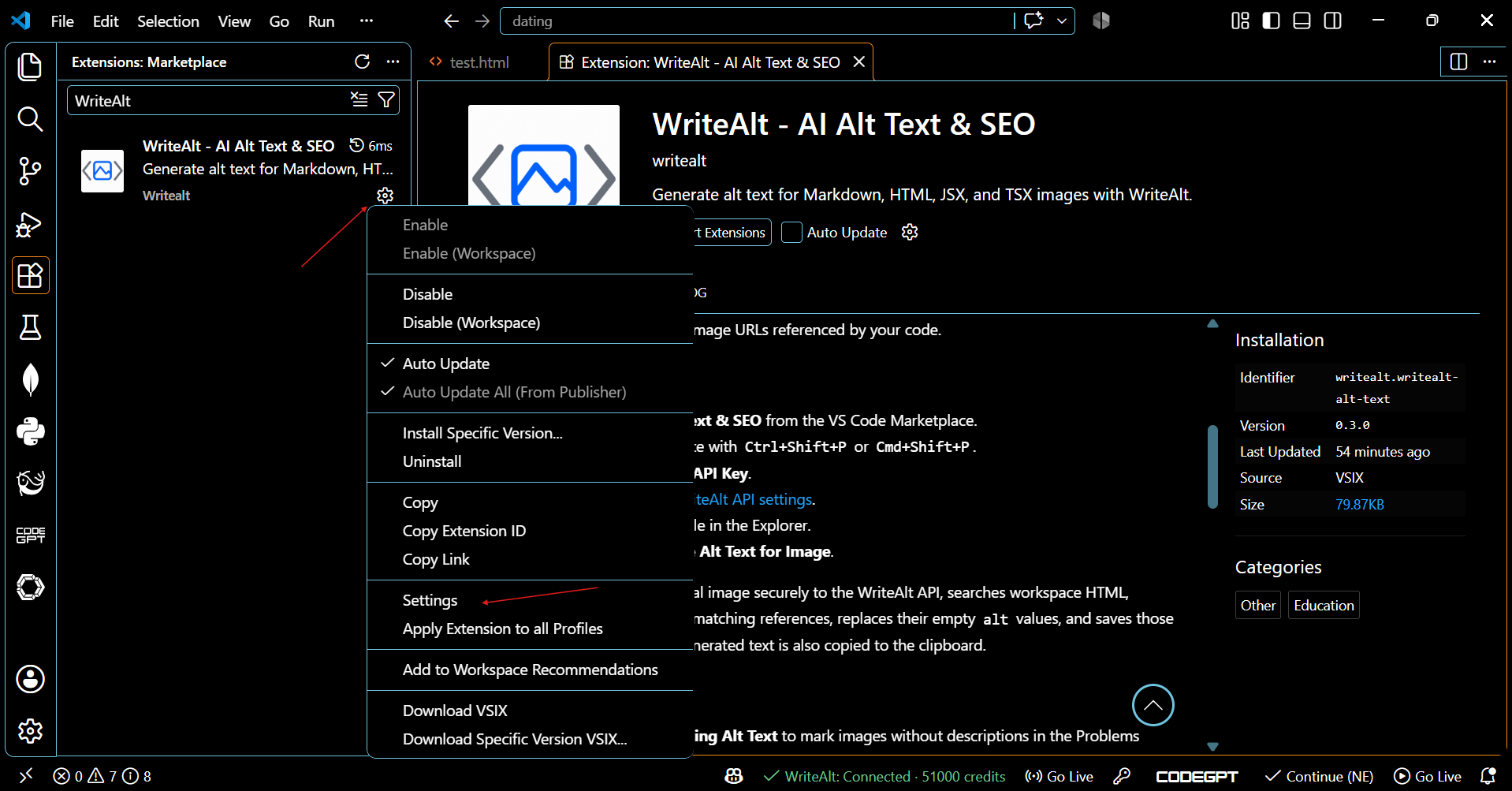
Open VS Code settings, search for WriteAlt, then select a language, writing style, and optional SEO keywords.
Generate at the cursor or from a local image, review the result in context, and publish only when it is accurate.
Review the generated result, extension settings, and the Command Palette flow used to configure your API key.
Here are the details most teams check before getting started.
Open the Command Palette with Ctrl+Shift+P, search for WriteAlt: Configure API Key, and enter your own WriteAlt API key. The extension stores it securely in Visual Studio Code.
WriteAlt supports image references in HTML, Markdown, JSX, and TSX files while preserving the surrounding document structure.
Yes. Right-click a local image in the VS Code Explorer and choose WriteAlt: Generate Alt Text for Image. The result is copied to the clipboard and saved in local history.
Review each result in context. Decorative images may need an empty alt attribute, while meaningful images should describe their purpose without unnecessary keyword repetition.
Generate alt text, improve image SEO, and keep your existing workflow moving.